
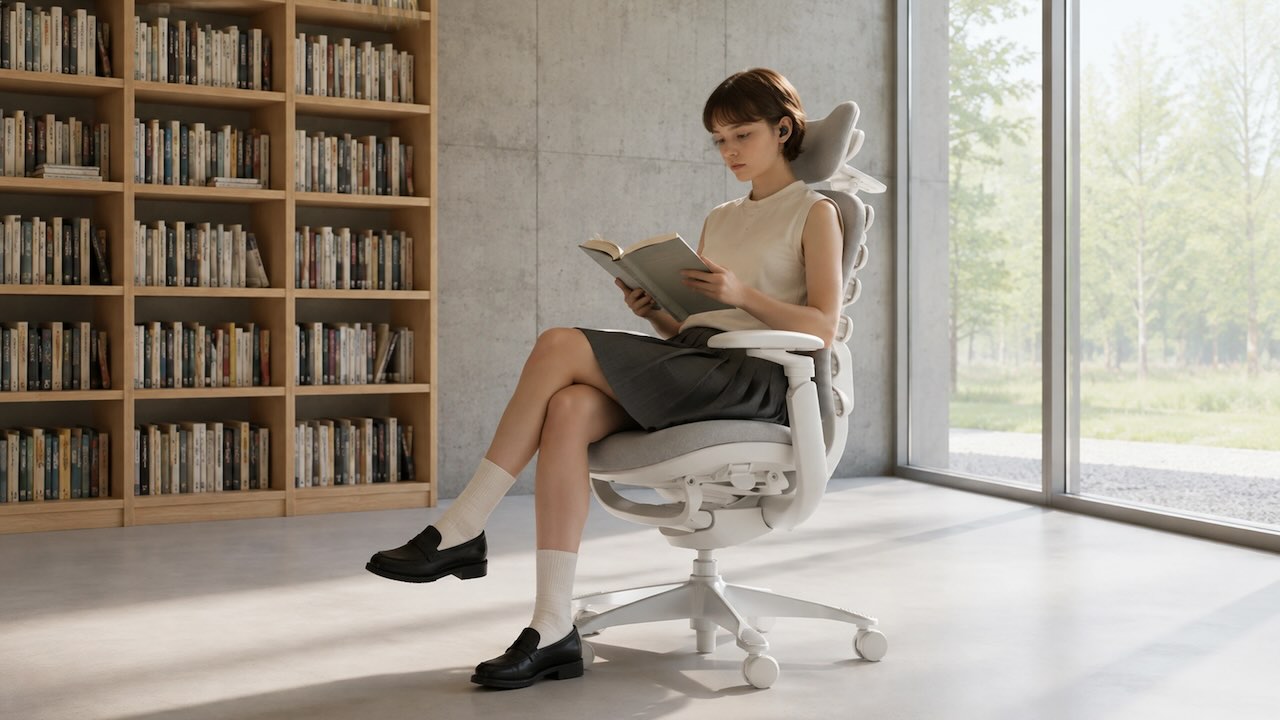
You can be brilliant at what you do—and still finish a desk-heavy day feeling like your body paid the price.
If you've ever stood up after a long stretch of deep focus and felt tight hips, a stiff neck, sore shoulders, or that dull low-back ache, you're not imagining it. Modern desk work asks your body to be still while your brain does high-performance work.
This guide isn't about chasing "perfect posture." It's a practical, personalized blueprint for auditing your setup, matching your chair and desk to your proportions, and building small habits that make sitting feel natural again.
What Is the Ideal Ergonomic Sitting Position to Prevent Daily Fatigue?
An ideal ergonomic sitting position is not a frozen pose. It's a sustainable baseline you can return to—then move away from—throughout the day. Think: supported, neutral, and easy to maintain without "holding yourself up."
A good ergonomic sitting baseline usually means:
- Your back is supported (especially the lower back)
- Your feet have stable support (floor or footrest)
- Your shoulders can relax (no shrugging)
- Your screen is positioned so your head doesn't drift forward
The details matter because small misfits compound over hours.
How Does Maintenance of a Rigid Posture Unintentionally Strain the Body?
Forcing a rigid, "perfect" posture can backfire. When you try to hold one position—especially one that requires constant muscle effort—your muscles fatigue, you subtly brace, and you often start compensating elsewhere (neck, jaw, shoulders, low back). As a Reddit member in the r/Ergonomics community said, "Posture matters, but sitting still for hours is the damage."
Ergonomics guidance consistently emphasizes that static postures are a problem: it's not only what posture you choose, but how long you stay there. The Canadian Centre for Occupational Health and Safety explicitly recommends you change positions frequently while staying within safe ranges, rather than locking into one pose all day (CCOHS guidance on sitting position and changing posture).
So the goal isn't "never slouch." The goal is: don't live in any one shape for too long.
Setting Up Your Core Baseline for a Healthy Ergonomic Sitting Posture
The famous "90-90-90" rule—elbows, hips, knees at roughly 90 degrees—can be a helpful starting point for ergonomic sitting posture, but it's not a law of nature.
Here's a more realistic approach: aim for "90-ish," then adjust based on what your body tells you. Start with these steps:
- Sit all the way back first. Scoot your hips back so your pelvis is supported and your lower back can meet the backrest.
- Set the seat height so your feet are truly supported. Feet flat on the floor is ideal. If you're petite and the chair won't go low enough, prioritize foot support (use a footrest) over forcing your heels to dangle.
- Aim for hip comfort, not a perfect right angle. CCOHS suggests hips, knees, and ankles at 90° or slightly higher. Many people feel better when their hips are slightly higher than their knees because it reduces the tendency to tuck the pelvis under.
- Set elbows to "hang and bend," not "reach and hover." Let your upper arms hang close to your body, then bring your keyboard/mouse to you so your elbows can bend at a right angle without lifting your shoulders.
Key Takeaway: If "good posture" feels like you're doing a plank while sitting, the setup is asking your muscles to do the chair's job.
Why a Depth Adjustable Office Chair Is a Non-Negotiable Fitment Priority
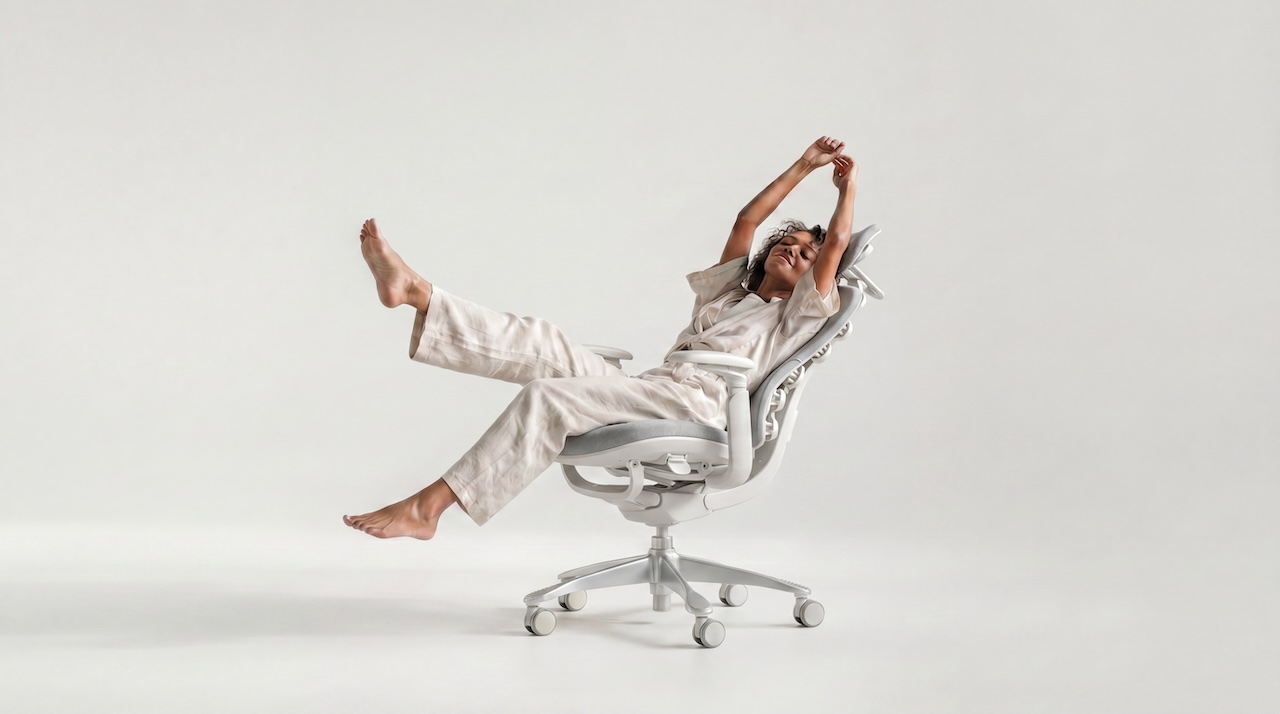
If you can only prioritize one adjustability feature, make it seat depth.
A depth-adjustable office chair solves a common mismatch problem for desk-bound professionals—especially those with shorter femurs relative to torso length or smaller frames. Many off-the-shelf chairs are built to fit a broad "average", so seat depth can be the first place you feel a mismatch.
Seat depth is the difference between:
- sitting back with your pelvis supported, and
- perching forward because the seat edge hits behind your knees.
How Does Incorrect Seat Depth Trigger a Chain Reaction of Lower Back Pain?
Seat depth is a femur-length dealbreaker.
When the seat pan is too deep for your thigh length, one of two things usually happens:
- You slide forward to create space behind your knees.
- The moment you slide forward, your lower back is no longer fully supported by the chair's lumbar curve.
Now your body improvises: you round your low back, your ribs flare, your head drifts forward, and your hip flexors stay shortened. It's not that you "failed at posture"—it's that you lost the support that makes good posture effortless.
Mastering the "Three-Finger Gap" Test to Lock in Pelvic Alignment
This is the simplest, most reliable seat depth test you can do in 10 seconds:
- Sit all the way back so your pelvis is against the backrest.
- Keep feet supported (on the floor or on a footrest).
- Check the space between the seat edge and the back of your knee.
CCOHS recommends a gap about the width of three fingers so the seat supports your thigh without pressing into the back of your knee. Their chair-adjustment guidance also uses a similar clearance idea (about a clenched fist / ~5 cm).
Why this matters: pressure behind the knee can feel like "mystery leg fatigue," numbness, or a constant urge to shift. And if you're shifting because the seat is too deep, you'll rarely get consistent lumbar support.
Overcoming Headrest Fitment Fails and Height Mismatches
Headrests can be helpful for recline breaks—but they're also one of the most common "this chair feels wrong" triggers.
Common headrest mismatches:
- It pushes your head forward: This can nudge you into a chin-poke posture that makes your neck work harder.
- It hits the wrong spot: Instead of supporting the back of your head (occiput), it presses into the upper neck.
- It's too high to contact you at all (common for shorter torsos) or too low to make sense.
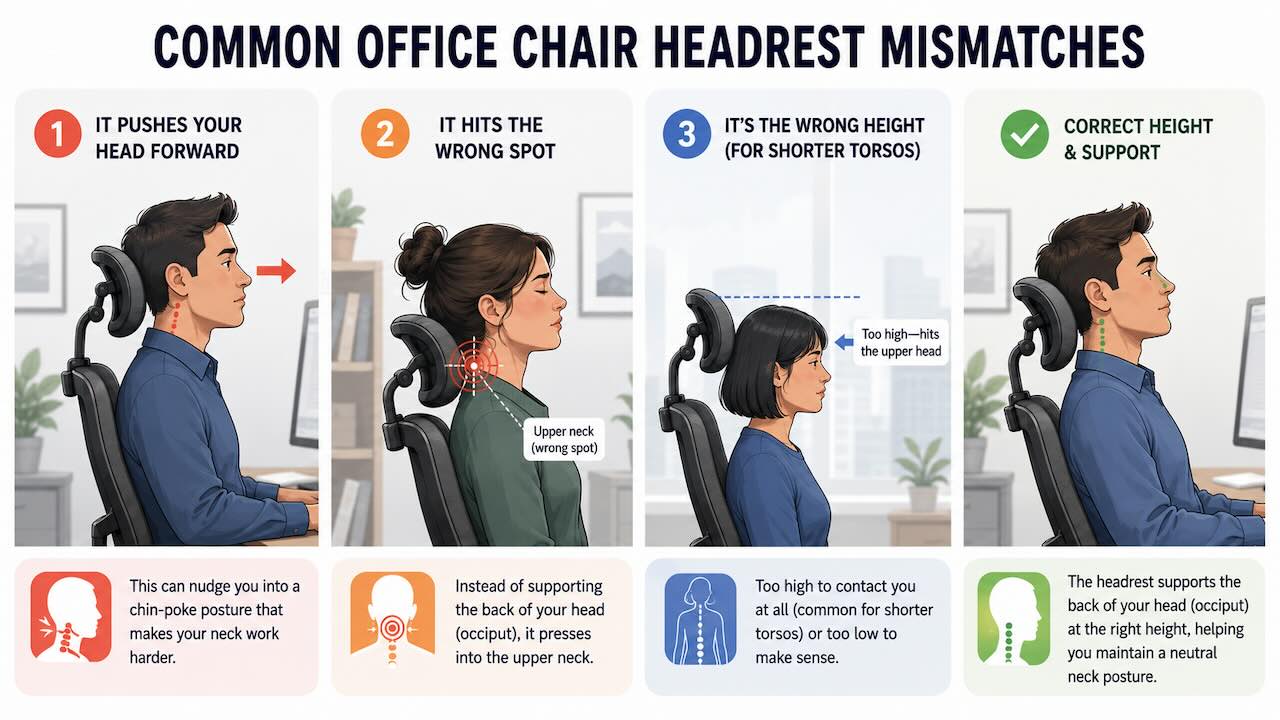
A headrest should support you only when you recline, not force your head forward while upright. If your headrest can't be positioned to meet the back of your head comfortably, treat it as optional—not a feature you must "learn to like."
Customizing Your Adjustable Arms Ergonomic Computer Chair to Prevent Upper Body Pain
Arm support is one of the most underrated drivers of daily comfort.
A truly adjustable arms ergonomic computer chair lets your shoulders relax while your hands work. Without that support, many people end up "hovering" their arms for hours—quietly loading the neck and upper traps.
Can Stiff or Fixed Armrests Cause Chronic Ulnar Nerve Compression and Shoulder Tension?
Two different problems often get blamed on "typing too much," when the real issue is arm support:
1) Shoulder tension from arm hovering: If the armrests are too low, too far apart, or missing entirely, your shoulders may subtly lift to keep your hands positioned.
2) Contact stress on the ulnar nerve at the elbow: If armrests are hard, narrow, or positioned so you lean into the bony part of the elbow, you can irritate sensitive structures.
Clinically, ulnar nerve irritation at the elbow (cubital tunnel issues) is associated with prolonged elbow flexion and/or pressure at the elbow region, as stated by Johns Hopkins Medicine. You don't need to diagnose yourself to take the practical implication seriously: avoid "hard elbow perching," especially for long periods.
Unlocking Relief with 4D Adjustable Armrests and Rotational Support
"4D" armrests usually mean you can adjust:
- height (up/down)
- width (in/out)
- depth (forward/back)
- angle (rotation)
Rotation matters more than it sounds. If you mouse a lot, your forearm naturally rotates. If the armrest can rotate inward slightly, you can keep your forearm supported without your shoulder creeping forward or up.
Set your armrests like this:
- Sit back.
- Let your shoulders drop.
- Bring armrests up until they just meet the underside of your forearms (no shoulder shrug).
CCOHS offers a similar principle: armrests should be adjusted so they barely touch the undersides of your elbows when your elbows are at about 90 degrees; if armrests force your elbows upward, it may be better to remove them.
The Practical Value of Low-Profile and Multi-Angle Clearance
Desk-bound women pros often do more than one "computer task." You might type, sketch, write by hand, take calls, edit photos, or shift between keyboard and tablet.
Armrests that are too bulky or too tall can block you from:
- pulling close to the desk for precision tasks
- sliding under a desk with limited clearance
- switching to a side task without twisting
Low-profile, adjustable armrests support your work when you need them—and get out of the way when you don't.
Calibrating Your Ergonomic Adjustable Office Chair: The Science of Screen Placement
Even a perfect chair can't save you from a screen that's too close, too far, or too low. When your eyes strain to see, your head often moves forward automatically. Your neck isn't "weak"—it's trying to solve a vision problem.
How Far Should a Monitor Be from Your Face to Prevent Forward Head Posture?
A practical baseline is about an arm's length away.
Mayo Clinic's office ergonomics guidance recommends placing the monitor about an arm's length away, no closer than 20 inches (50 cm) and no farther than 40 inches (100 cm), with the top of the screen at or slightly below eye level.
If the monitor is too far, you tend to lean in. If it's too close, you may crane or squint depending on font size and glare. Also note Mayo Clinic's practical tip: if you wear bifocals, lowering the monitor slightly can reduce the urge to tilt your head back.
Calculating Your Ideal Setup Using the "Monitor Distance Coefficient"
The phrase "monitor distance coefficient" often appears in gaming settings, but it's not a standard ergonomic measurement. Here's the evidence-based concept behind what people are trying to do with it: Your neck stays neutral when your eyes can read comfortably at your monitor distance.
Recommended monitor viewing distance reference:
| Monitor Size & Type | Resolution | Recommended Distance |
|---|---|---|
| 27-inch (1080p) | 1920×1080 | 38–41 inches |
| 27-inch (1440p) | 2560×1440 | 31–34 inches |
| 32-inch (4K) | 3840×2160 | 34–38 inches |
| 34-inch Ultrawide (Flat) | 21:9 | 34–36 inches |
| 34-inch Ultrawide (Curved) | 21:9 | 30–32 inches |
Table sources: KTC Display, Mayo Clinic Health System
Key monitor setup habits:
- Increase text size/zoom until you can read without leaning forward.
- Adjust monitor height so you're looking slightly downward without tucking your chin.
If you notice your head drifting forward during deep work, ask one question first: "Am I leaning in to see?" Often, increasing font size by one step fixes the posture problem more effectively than "trying harder."
Peripheral Ergonomics: Designing a Calm, High-Focus Workspace Around Keyboards & Mice
Once your chair is set, the next bottleneck is the gear you constantly touch. Peripheral ergonomics isn't about aesthetics. It's about removing tiny frictions that quietly pull your body out of alignment.
Why Are Compact 75% Keyboards Causing Secret Neck and Shoulder Strain?
Compact keyboards can be great—less reach to the mouse, more desk space. The problem isn't the layout. It's how people center it.
Many people center the keyboard case on the desk or monitor. But what your body cares about is where your hands live.
A practical alignment cue:
- Put your hands on the home row.
- Make sure the "typing center" (around the G/H area) lines up roughly with your midline (sternum).
If you constantly type slightly off-center, you can accumulate a subtle rotation through the shoulders and torso. You might not feel it in minute one—but you'll feel it in hour five.
Optimizing Mouse DPI Settings to Substitute Arm Movements with Finger Precision
If your mouse sensitivity is low, you may "assembly-line" your shoulder all day: reach, drag, reset, repeat.
Raising DPI/sensitivity can reduce how far you have to move your whole arm to cover the screen. The goal is not twitchy control—it's finding a setting where you can navigate primarily with smaller movements while keeping your shoulder relaxed.
If you work in design tools or spreadsheets, test your settings like this:
- Can you move from one corner of the screen to the other without reaching or lifting your shoulder?
- Can you still click accurately without gripping the mouse harder?
If accuracy drops, step back down. The best setting is the one that lets you stay relaxed.
Engineering a Utilitarian Workspace Where Focus Comes Easily
A calm desk is an ergonomic tool.
Harvard Environmental Health & Safety emphasizes fitting the work to you, including keeping frequently used items within reach. That "within reach" point isn't just about convenience—reaching changes posture.
A simple principle: place the items you touch most in your "comfort zone" (where your elbows can stay close to your body). Everything else can live farther away.
This is how you protect focus: you reduce the number of tiny body adjustments your nervous system has to make just to do routine tasks.
Selecting the Best Ergonomic Office Chair for Long Hours to Combat Sedentary Risks
The best ergonomic chair for long hours isn't the most expensive one. It's the one that fits your body, supports movement, and doesn't force you into workarounds.
When you sit for 6–10 hours/day, comfort becomes a health input. Here is what ARBREST ergonomic designers suggest you look for in a chair that can adapt across the day:
| Part of the Chair | What to Look for |
|---|---|
| Gas lift cylinder | Adjustable seat height |
| Backrest and cushion | Adjustable seat depth |
| Backrest | Effective lumbar support |
| Armrests | Support for relaxed shoulders (multi-directional adjustability) |
| Recline mechanism | A recline/tilt that lets you change positions effortlessly |
Can Prolonged Sitting Cause Vulvar Pain and Pelvic Floor Congestion in Women?
This is real—and it's often ignored in mainstream chair reviews.
Some women experience vulvar or pelvic discomfort that's worsened by pressure and prolonged sitting, as researched and explained by the Cleveland Clinic. There are multiple possible causes, and you don't need to self-diagnose to take the symptom seriously.
NIH/NCBI clinical references note that prolonged sitting can contribute to conditions like pudendal nerve entrapment. In other words, it may worsen the pain when sitting and improve it when standing or lying down.
More broadly, clinical reviews of chronic pelvic pain note that pain worsened by pressure (including prolonged sitting) warrants appropriate evaluation and care rather than "pushing through."
Medical note: Vulvar or pelvic pain can have many causes (including infection, skin conditions, hormonal changes, musculoskeletal issues, nerve irritation, and more). If you have persistent vulvar pain, numbness, burning, or symptoms that interfere with daily life, it's worth talking to a qualified clinician.
From an ergonomics standpoint, chair fit can still matter:
- Too-deep seats increase pressure and sliding
- Hard, dense cushions can concentrate pressure
- Poor ventilation can increase discomfort
Dismantling the Systemic and Circulatory Toll of an Office Chair for Long Hours
Long, uninterrupted sitting doesn't just strain one body part—it changes how your whole system feels.
Over time, people commonly notice stiffness in the hips and mid-back, heaviness or restlessness in the legs, increased shoulder tension during high-focus work, and fatigue that feels "physical," not just mental. These prolonged-sitting discomforts are documented by the NIH.
That's why the best chair for long hours isn't about locking you into place. It's about making it easy to:
- stay supported while you work
- recline briefly without losing your setup
- reset your body without leaving your desk
Is Sitting Cross-Legged on a Chair Ruining Your Pelvic Alignment?
Sitting cross-legged is incredibly common—especially among women—and it's often your body's way of asking for a change.
The habit isn't "bad" in a moral sense. But it can create predictable asymmetries if it becomes your default position.
Why Is Sitting Cross-Legged in the Office So Habitual Yet Structurally Damaging?
Crossing your legs tends to tilt the pelvis to one side, subtly rotate the torso, and tighten one hip more than the other. Over time, that asymmetry can show up as a "one-sided" low-back ache, one shoulder that creeps up, or a hip that feels tighter.
It's also worth asking why you do it. Many people cross their legs because they don't have a footrest and want support. Or maybe the seat is too deep and crossing creates "space". Eventually, they're seeking movement because static sitting feels bad.
So if you cross your legs constantly, check seat depth first (three-finger gap), then check foot support.
Designing Around the Habit: What to Look for in a True Chair for Sitting Cross Legged
If you like changing positions, you don't need to force yourself into one "proper" pose.
A chair that can accommodate occasional cross-legged sitting more safely tends to have:
- enough usable seat width (without hard side bolsters)
- a seat surface that doesn't create sharp pressure points
- adjustable seat depth so you're not cross-legged because the seat is too deep
If you're searching online for an ergonomic cross-legged office chair, treat "cross-legged friendly" as one feature—and still run the seat-depth and foot-support checks first. A wide seat without the right depth can still nudge you into the same pelvic tilt pattern.
Integrating Chairs for Standing Workstations to Build an Energetic Workflow
Standing can be a powerful tool—but standing all day isn't the fix. A hybrid workflow works best when it increases variety.
How Many Hours Should You Stand a Day at a Hybrid Workstation?
There isn't one perfect number for everyone, but the evidence supports a gradual, mixed approach.
Research on sit-stand desk use suggests benefits when you regularly interrupt prolonged sitting and accumulate a meaningful amount of standing across the day, while also noting that too much standing can increase leg and foot discomfort. One NIH-hosted study found that changing posture throughout the day can reduce discomfort and fatigue compared with uninterrupted sitting.
A practical starting plan:
- stand in short bouts (often 15–30 minutes)
- aim for a few hours of total standing across the day
- keep walking/micro-movement as the "third posture" whenever possible
Can Standing Burn Calories Effectively Compared to Active Seating?
Standing burns a bit more energy than sitting, but it's not a weight-loss strategy by itself. Harvard Health points out that a standing desk is unlikely to drive meaningful weight loss, and jumping from sitting all day to standing all day can create its own aches—so easing in matters.
The real win for many people isn't calories—it's:
- better blood flow
- fewer long, unbroken sitting bouts
- waking up stabilizer muscles that go offline during long static sessions
The Role of a Dynamic Standing Ergonomic Office Chair
"Standing desks" don't have to mean rigid standing. Perching stools and sit-lean chairs can bridge the gap:
- they unload the legs
- they keep hips more open than deep sitting
- they make it easier to shift weight and change positions
Some people describe these perching options as an ergonomic standing office chair—not because you're fully upright all day, but because it lets you alternate between supported leaning and full standing.
The "Next Posture" Philosophy: Cultivating Micro-Movements and ErgoActive Habits
Chair adjustments are powerful—but your body is built for movement. When your habits change, the chair stops being a "fix" and becomes a supportive tool.
Why Is the Best Posture Always the Next Posture?
The best posture is the one you don't hold for too long. That idea shows up in practical ergonomics advice: change positions frequently rather than staying static. Mayo Clinic makes the same point for desk workers: sitting in the same position for hours isn't good for your body, and shifting position, standing up, and moving helps ease strain.
Five-Minute Seated Reset Rituals to Help Your Body Feel Human Again
You don't need a yoga session. You need micro-resets that bring blood flow back and undo the "desk shape."
Try this 5-minute sequence once or twice a day:
- Neck glide + chin tuck (30–45 seconds): Gently bring your chin straight back (like making a double chin), then release. This helps counter the forward-head drift.
- Shoulder blade squeeze (45 seconds): With shoulders relaxed, gently squeeze shoulder blades back and down, hold 2 seconds, release. Repeat slowly.
- Seated thoracic twist (60 seconds each side): Sit tall, rotate your ribcage gently to one side without yanking your neck.
- Hip reset (60 seconds): March one knee up slightly (or extend one leg) to change hip position and get out of the "stuck" hip angle.
- Ankle pumps (30–45 seconds): Pump ankles up/down to bring circulation back through the lower legs.
If any movement increases pain or causes tingling/numbness, stop and choose a gentler motion.
Building an Intelligent, Adaptive Workspace for Complete Wellness
An intelligent workspace is one that adapts to your real behavior: you shift positions during deep focus, you occasionally sit cross-legged, you take calls, and you switch between keyboard, mouse, and notebook.
Harvard EHS emphasizes the general ergonomics principle of fitting the work environment to the person. In practice, that means you design for ease:
- Easy to sit back: seat depth fits
- Easy to see: monitor distance and text size match
- Easy to relax shoulders: armrests support you
- Easy to change posture: tilt/recline and/or sit-stand options
Conclusion & Healthy Seating Action Audit
A good ergonomic chair isn't a magical cure. It's an adjustable partner that supports your body's need for alignment and movement.
If you want an immediate difference, do this quick desk audit today:
- Check seat depth: sit back and confirm a three-finger gap behind your knees.
- Reset monitor distance: arm's length, roughly 20–40 inches, top of screen at/below eye level.
- Schedule one 5-minute movement cue: set a reminder once in your afternoon slump and do a seated reset.
Small adjustments, repeated, are what make a desk job sustainable.